Teleoperation
Launching the Teleoperation GUI
Power on the tablet. Open the home directory by double-clicking the Home folder on the desktop. Locate the tablet_launch.sh file. Press and hold on that file until a menu shows up. Select Run as a Program. The GUI should launch. To exit the GUI, press the X in the top right corner of the GUI.
About the Tablet Joystick
The teleoperation tablet has a built-in SpaceMouse® Compact joystick, allowing for six degrees of freedom when teleoperating.
Check ROS2 Node Status
For each OARBot and for the NUC, several status indicators should be showing. If a status indicator is green, the tablet detects the node/topic. If not, the node may be down, or the tablet has not detected it yet.
After launching the GUI, it may take several seconds for the tablet to detect all ros nodes/topics. However, this process should be completed within 30 seconds.
Enabling Dingo Movement
By default, the Dingo motors are disabled. To enable them, press the  button on the Dingo's HMI panel. Its light should turn solid green. The rear two side status lights should be solid red, and the front two side status lights should be solid white.
Manual Teleoperation
Moving the Dingo Base
Ensure the E-stop switch is not pressed down. Turn it clockwise if it is pressed down. To move the Dingo base, press the Base Disabled button under the OARBot you wish to move. It should turn blue. Hold down the deadman switch at the back of the green casing on the tablet and carefully move the joystick. The dingo base should move.
Before moving on, press the Base Enabled button if you wish to stop sending signals to the Dingo base
Moving the Kinova Arm
Press the Arm Disabled button under the OARBot whose arm you wish to move. It should turn blue. Hold down the deadman switch at the back of the green casing on the tablet and carefully move the joystick. The arm should start to move. To open/close the fingers, drag the slider labeled Arm Finger Positions.
Before moving on, press the Arm Enabled button if you wish to stop sending signals to the Kinova arm.
Joystick Control
The Kinova HMI has a joystick that allows you to control the Kinova arm without the tablet.
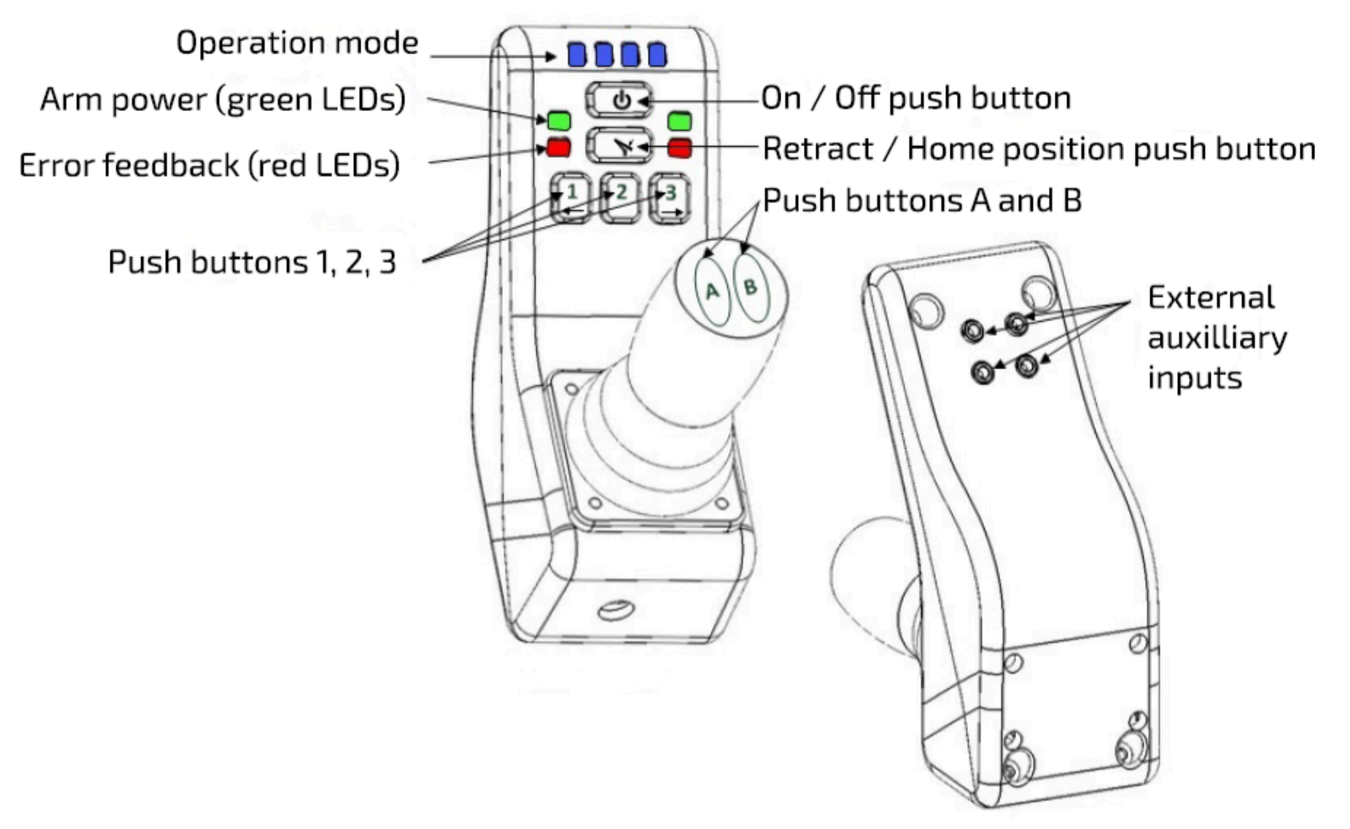
Pressing buttons A and B on the top of the joystick changes the type of teleoperation.
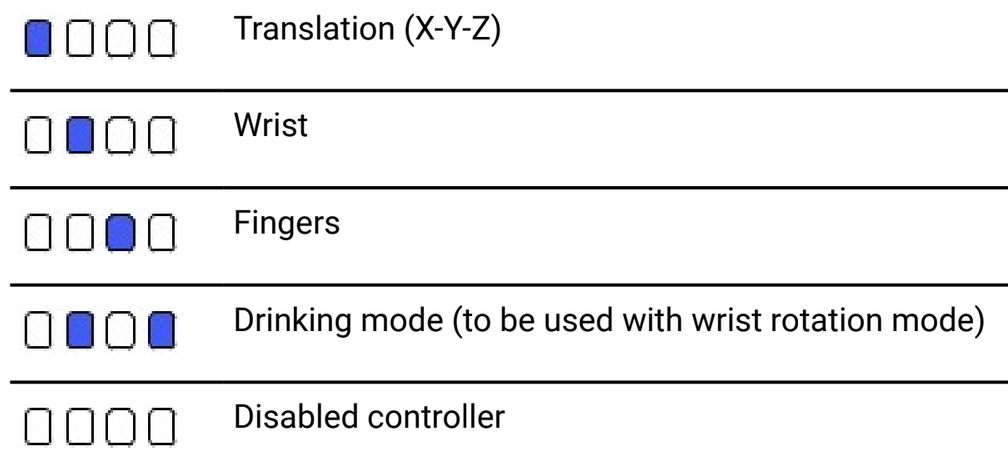
Admittance Control
Admittance control relies on a good calibration of the force torque sensor. If the sensor is not well calibrated or some other error occurs, the robot may lose control. Always be ready to press the red E-stop button on the tablet.
Admittance control allows the force torque sensor mounted behind the end-effector to be used to move the arm. To enable admittance control, press the Admittance Control Disabled button.
When using admittance control, manual teleoperation via the joystick is not possible
Grab onto the end effector of the arm and gently pull on it. The arm should move along with you.